Unity CatalogGovernanceDatabricks5 Minute Features3 min read
Tag Automations in Unity Catalog
 Kristian Johannesen
Tag Automations are rules that keep governed tags in Unity Catalog up to date: they check tables or volumes against conditions you choose, and add or remove a tag wherever one holds.
Example: tag a table as sensitive when one of its columns is tagged as PII, certify the tables that have a description, or mark the ones nobody has queried for months as stale.
Where to find it: Catalog Explorer, under Governed Tags on the Automations tab.
Anatomy of a Tag Automation
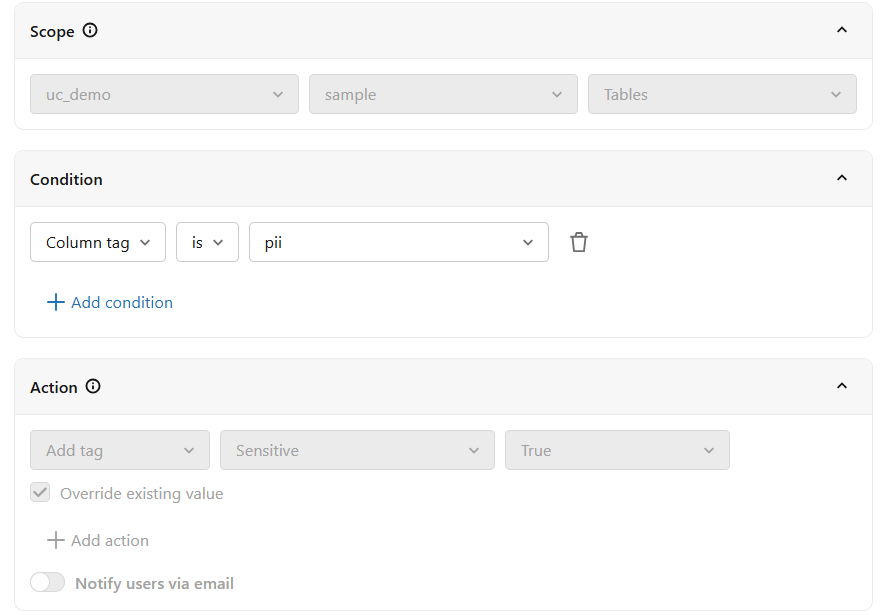
A Tag Automation has three parts.
Scope is one catalog, optionally narrowed to some of its schemas, and one asset type: tables or volumes, not both. A Tag Automation cannot span catalogs, and every table type in scope is included, views and materialised views alike.
Conditions decide which assets in scope match, combined as match all or match any:
- tags and tag values already on the asset, or on its columns (tables only)
- read and write query counts over the last 30 days, and when the asset was last queried (tables only)
- created date and last updated
- owner, description (exists or not) and name (contains or not)
Actions add or remove governed tags, up to five per Tag Automation. Each action can override a value the asset already carries, and can email the asset owners or named users about what changed.
Scope and action are fixed once the Tag Automation is created. The conditions, schedule, name and description can be edited afterwards.
Dry run, then enable
Saving a Tag Automation does not change any tags. It starts a dry run, which lists the assets it would change. You can dry run it as often as you like, and dry runs are marked as such in the run history. It stays pending review until you enable it. Enabling is your sign-off that it does what it should. After that it runs on demand or on a recurring schedule, and the run history shows what each live run changed.
Who can create one
The creator needs USE CATALOG, USE SCHEMA, APPLY TAG and MANAGE on the catalog, even if the scope is narrowed to a few schemas, and ASSIGN on every tag it adds or removes. In short, you can only automate tagging you are allowed to do yourself. Users see only the Tag Automations for tags they can assign. Account admins see them all.
Limits
A run handles up to 500 matching assets. Schedules are recurring only, with results typically within 24 hours. There are no event-based triggers.
Start with the untagged estate
In my view, Tag Automations are most useful on a large estate that has not been tagged consistently. They are a great place to start getting every object tagged, and they scale well. Keep an eye on cost, though: every run costs compute, so unless the estate changes often enough to need a daily run, I would stick to manual runs.
The full reference is Databricks' documentation: Automate tag assignment.
Building rules with Genie
The video builds two Tag Automations on a demo schema: the sensitive-table rule in the screenshot, and one to certify tables that have a description. Both were described to Genie first. Genie checked that the tags exist and that I am allowed to assign them, but it did not find the column-level pii tag, so I built the first Tag Automation by hand. For the second, Genie generated everything, name and description included, but scoped it to a schema that does not exist. The dry run found nothing, which is how the mistake showed up. If you create a Tag Automation with AI, check its details before you enable it.
For the sensitive-table rule, the dry run took a little under a minute and found the two tables with pii columns. The live run then tagged both, which is exactly what it should do.